
Temp vs Prefetch: Critical Forensic Differences
When examining an infected host, new analysts often confuse temporary storage with execution caching. Understanding the distinction is vital for accurate threat scoping:
-
The Temp folder (
%LOCALAPPDATA%\TemporC:\Windows\Temp): An arbitrary scratchpad designed for applications, installers, and unpackers. Any process running under the user's security context can write files here, modify them, execute them, and delete them at will. -
The Prefetch folder (
C:\Windows\Prefetch): An internal Windows memory-management artifact managed exclusively by the operating system kernel. When an application launches, the Cache Manager generates a.pffile logging the binary's name, execution counter, first/last run timestamps, and referenced DLL blocks to optimize subsequent page faults.
Even when advanced malware purges its initial dropper binary from the Temp directory to frustrate incident response, evidence of the binary's execution remains permanently etched into Windows Prefetch tables and Sysmon telemetry until overwritten by normal system churn.
Why the Temp Folder Appears in Malware Chains
Adversaries target the lowest-resistance path to establish execution. In typical unprivileged Windows user sessions,
most system directories (such as C:\Program Files and C:\Windows\System32) enforce strict Discretionary
Access Control Lists (DACLs) requiring User Account Control (UAC) administrative elevation for write operations.
The Temp directory bypasses this hurdle completely:
- Zero Elevation Required: Standard user tokens have full read, write, and execute permissions within their own
%TEMP%workspace. - High Environmental Noise: Thousands of legitimate software installers, browser caches, and runtime interpreters churn files inside Temp daily, obscuring malicious artifacts from casual inspection.
- Volatile Staging: Script droppers (PowerShell, VBS, JScript, batch files) can quickly extract multi-stage payloads, run them in-memory or via child processes, and clean up the on-disk footprint.
- Living-off-the-Land Integration: Native Windows binaries (such as
certutil.exe,bitsadmin.exe, ormshta.exe) routinely accept Temp paths as valid operational scratch space.
Attack Sequence and Malware Staging Patterns
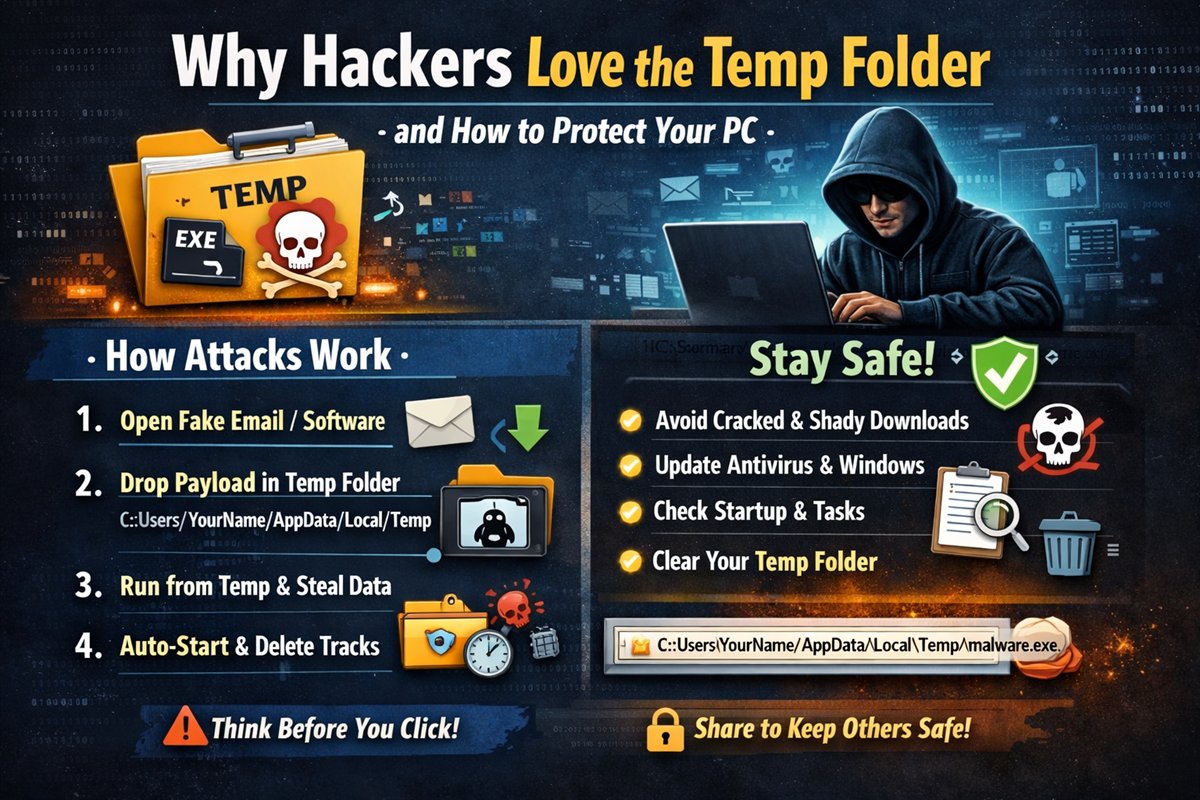
Across common malware families such as RedLine Stealer, AsyncRAT, and Qakbot loaders, the operational deployment pattern follows a predictable multi-stage sequence:
- Initial Ingress: The user executes an untrusted file from a phishing lure, malvertising campaign, or trojanized installer (e.g. an ISO, password-protected ZIP, or weaponized LNK shortcut).
-
Payload Extraction: The first-stage loader immediately writes its secondary payload or obfuscated shellcode into
%LOCALAPPDATA%\Temp\<random_hex>.tmpor masquerades as a legitimate system utility name. -
Execution Handoff: The dropper invokes the binary or passes it to a native interpreter (such as
rundll32.exe,powershell.exe, orregsvr32.exe) to execute under a separate process ID. -
C2 Beacon & Persistence: The running implant communicates with command-and-control servers, steals credentials,
and writes persistent hooks into registry Run keys (
HKCU\Software\Microsoft\Windows\CurrentVersion\Run) or Scheduled Tasks. - Trace Obfuscation: The initial dropper attempts to delete the temporary staging files or overwrite them with blank bytes.
Forensic Triage: PowerShell Inspection Commands
When responding to anomalous system behavior or reviewing threat telemetry, you can rapidly audit recent executable artifacts deposited into the active user's temporary directories using native PowerShell:
# 1. Inspect recently created executables and scripts in user Temp (last 24 hours)
PS > Get-ChildItem -Path $env:TEMP -Recurse -File -Include *.exe,*.dll,*.bat,*.ps1,*.vbs,*.js,*.cmd |
  Where-Object { $_.CreationTime -gt (Get-Date).AddDays(-1) } |
  Select-Object Name, Length, CreationTime, LastWriteTime, FullName |
  Format-Table -AutoSize

# 2. Calculate cryptographic hash of a suspicious temporary artifact for threat analysis
PS > Get-FileHash -Path "$env:TEMP\suspicious_sample.exe" -Algorithm SHA256

# 3. Audit active processes executing directly from any AppData or Temp path
PS > Get-Process | Where-Object { $_.Path -like "*\AppData\Local\Temp\*" -or $_.Path -like "*\AppData\Roaming\*" } |
  Select-Object Id, ProcessName, Path, StartTime |
Format-Table -AutoSizeNever double-click or execute suspicious temporary files to check what they do. Always record the SHA-256 hash, isolate the sample into an analysis archive, and cross-reference the hash against threat intelligence repositories in an isolated sandbox.
Endpoint Hardening: AppLocker and Execution Restrictions
Relying solely on periodic Temp folder cleanup is fundamentally reactive. Robust security engineering stops threats before code execution occurs through behavioral restrictions and architectural controls:
1. Software Restriction Policies & AppLocker Rules
Legitimate software rarely needs to execute directly from %LOCALAPPDATA%\Temp after initial setup.
System administrators and proactive users can enforce Path Deny rules preventing executable files (.exe, .dll,
.msi, .bat) from executing inside user-writable directories.
# Audit active Attack Surface Reduction (ASR) rules in Windows Defender
PS > Get-MpPreference | Select-Object -ExpandProperty AttackSurfaceReductionRules_Ids

# Recommended ASR rule: Block executable content from email client and webmail
# Rule GUID: BE9BA2D9-53EA-44A7-8F61-B54C0E4ECC70 (Set to Block mode = 1)
PS > Add-MpPreference -AttackSurfaceReductionRules_Ids "BE9BA2D9-53EA-44A7-8F61-B54C0E4ECC70" -AttackSurfaceReductionRules_Actions Enabled
2. Endpoint Detection and Telemetry (Sysmon)
In enterprise monitoring, high-fidelity detection rules flag when a child process spawns out of temporary folders. Key telemetry signals include:
- Sysmon Event ID 1 (Process Creation): Monitor command lines containing
\AppData\Local\Temp\spawned by office applications, browsers, or scripting hosts. - Sysmon Event ID 11 (File Create): Alert when processes like
curl.exe,certutil.exe, orpowershell.exewrite new binaries to%TEMP%. - Windows Security Event ID 4688: Track process launches with full command-line logging enabled.
Windows Temporary Storage Security Matrix
| Storage Location | Permission Model | Primary Threat Vector | Defensive Mitigation | Detection Telemetry |
|---|---|---|---|---|
%LOCALAPPDATA%\Temp |
User Full Control | Initial stage droppers & RAT unpacking | AppLocker path deny rule | Sysmon EID 1 & 11 |
C:\Windows\Temp |
SYSTEM / Admin write | Privilege escalation & service payloads | Strict admin DACLs | Security Event 4688 |
C:\Windows\Prefetch |
Kernel managed | Forensic trace discovery | Preserve for forensics | WinPrefetchView / PECmd |
%APPDATA%\Roaming |
User Full Control | Persistence staging & credential dumps | Behavioral EDR rules | Autoruns / EID 1 |
Practical Defense Checklist
- Refuse execution of cracked tools, unverified attachments, and torrent software that leverage user-space droppers.
- Configure AppLocker or Software Restriction Policies to disallow executable binaries from launching inside
AppData\Local\Temp. - Enable Windows Defender Attack Surface Reduction (ASR) rules, specifically blocking executable content from email and webmail.
- Maintain automated definition updates for Defender and endpoint security agents.
- Perform routine forensic checks on startup items, Scheduled Tasks, and Run keys using Sysinternals Autoruns.
- Treat any executable or script originating in temporary folders as hostile until proven benign.
Defensive Takeaway
Effective cyber defense is anchored in understanding adversary tradecraft. Attackers do not choose the Temp folder because it possesses secret magical properties; they choose it because it is frictionless, writable, and overlooked. By enforcing execution boundaries and monitoring process telemetry, you transform this common blind spot into an early detection tripwire.
Educational and Defensive Scope: Published exclusively for defensive awareness, system hardening, and endpoint forensic analysis.